Every day I spend a lot of time browsing the internet. Whether I am checking emails, reading blogs, watching videos, shopping online, or managing my work, my web browser is always open. For a long time I believed that simply installing an antivirus program was enough to stay safe online. Later I realized that my browser is actually the main gateway to the internet, and if I ignore its security settings, I can easily become a victim of hackers, phishing websites, malware, or data theft.
After learning more about online security, I started exploring the built in security features available in modern browsers. I discovered that browsers like Google Chrome, Mozilla Firefox, Microsoft Edge, and Safari already include many powerful security options. The problem is that many people never take a few minutes to enable them.
In this article I want to share the browser security settings that I always enable on my devices. These settings have helped me browse with greater confidence while protecting my personal information.
Keep Your Browser Updated
The first thing I always check is whether my browser is updated.
Every browser receives regular security updates that fix newly discovered vulnerabilities. Cybercriminals constantly search for weaknesses in outdated software. If I continue using an old browser version, I may unknowingly expose my computer to attacks.
Thankfully most modern browsers update automatically. Even so, I occasionally open the browser settings and manually check for updates. It only takes a minute, and I know I am using the latest security patches.
Using an updated browser is one of the simplest yet most effective ways to stay protected online.
Turn On Safe Browsing Protection
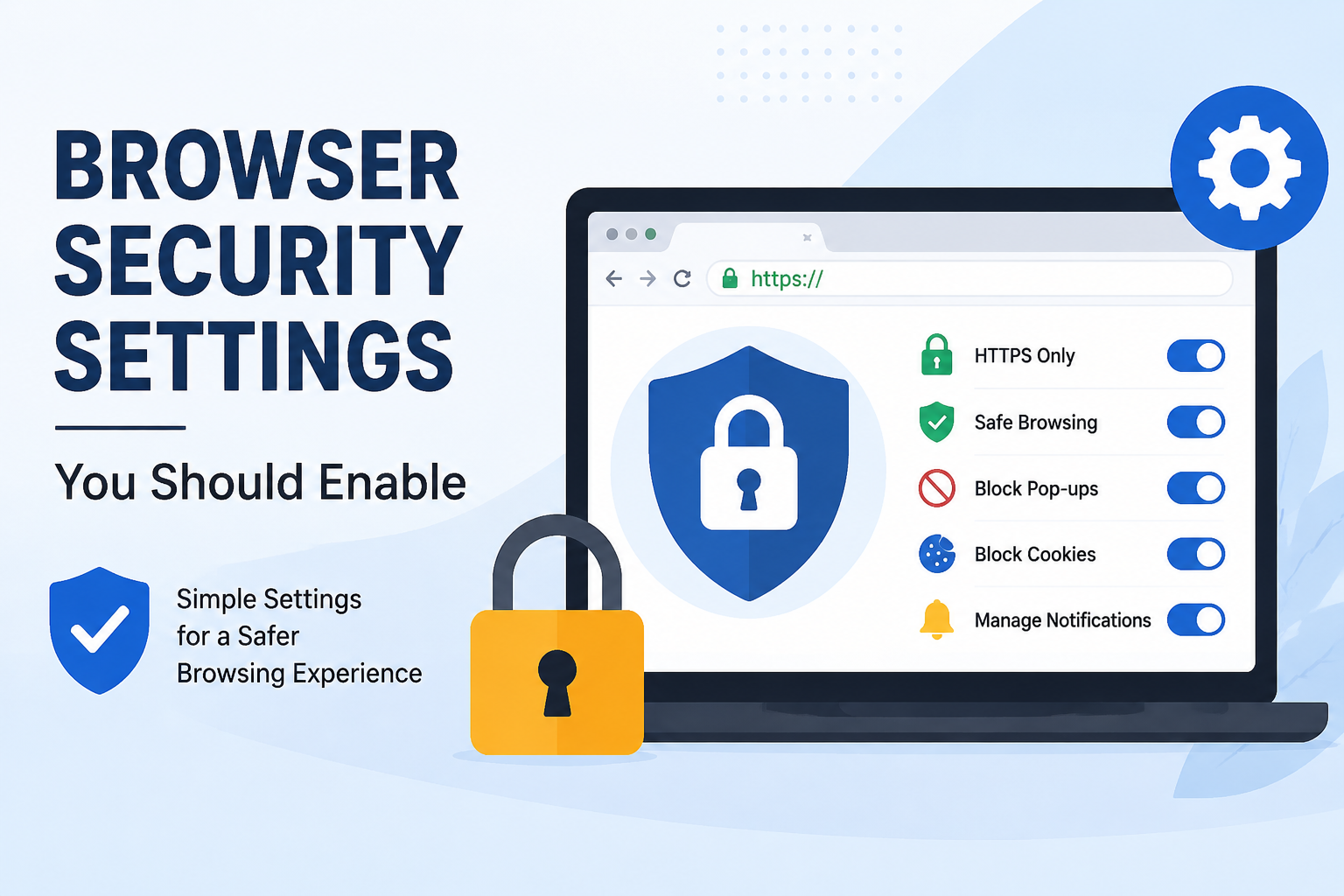
One feature I never disable is Safe Browsing.
This feature warns me whenever I try to visit a dangerous website. It also alerts me before downloading files that may contain malware.
There have been several occasions where Safe Browsing displayed a warning before I entered a suspicious website. Instead of ignoring the warning, I immediately closed the page, which probably saved me from entering fake login information.
I believe everyone should keep this feature enabled because it works quietly in the background without affecting normal browsing.
Enable HTTPS Only Connections
Whenever possible, I prefer websites that use HTTPS instead of HTTP.
HTTPS encrypts the connection between my browser and the website. This means that information like passwords, payment details, and personal messages cannot easily be intercepted by attackers.
Many browsers now include an option to always use secure connections. When this setting is enabled, the browser attempts to connect through HTTPS first.
If a website only supports an insecure connection, my browser usually warns me before proceeding. I appreciate this extra layer of protection because it helps me avoid risky websites.
Block Pop Up Windows
Years ago pop up advertisements were everywhere. Some were simply annoying while others tried to trick people into downloading fake software or revealing personal information.
That is why I always keep the pop up blocker enabled.
Most legitimate websites work perfectly without showing unwanted pop ups. Whenever I visit a trustworthy website that genuinely requires pop ups, I simply allow them for that specific site instead of disabling the blocker completely.
This small setting greatly reduces unwanted distractions and improves security.
Enable Enhanced Protection
Some browsers provide an enhanced security mode.
For example, Google Chrome offers Enhanced Safe Browsing, while Microsoft Edge includes similar advanced protection features.
When enabled, the browser performs more detailed security checks to detect dangerous downloads, phishing attempts, and malicious websites.
Although it may slightly increase the amount of browsing data shared for security purposes, I personally believe the additional protection is worth it.
Manage Website Permissions
One habit I developed is regularly reviewing website permissions.
Many websites request access to my camera, microphone, location, notifications, clipboard, or downloads.
Instead of clicking Allow without thinking, I carefully consider whether the website actually needs that permission.
For example, a video meeting website obviously needs camera and microphone access. However, a random news website does not.
Every few weeks I review all granted permissions and remove anything that is no longer necessary.
This simple habit prevents unnecessary access to my personal devices.
Disable Third Party Cookies
Cookies help websites remember login sessions and preferences. However, third party cookies are often used for tracking user activity across different websites.
I prefer limiting this type of tracking.
Most browsers now offer options to block third party cookies while still allowing essential website functionality.
Although some personalized advertisements may disappear, I appreciate having greater privacy during everyday browsing.
Turn On Password Protection
Remembering dozens of unique passwords is impossible for me without help.
Instead of using the same password everywhere, I rely on my browser’s secure password manager.
Modern browsers can generate strong passwords automatically and warn me if any saved password appears in a known data breach.
Whenever I receive a password warning, I immediately change that password.
Strong passwords combined with password monitoring significantly reduce the chances of account compromise.
Enable Multi Factor Authentication
Although this setting is not directly inside the browser, it works closely with my browsing experience.
Whenever a website supports multi factor authentication, I enable it immediately.
Even if someone somehow discovers my password, they still cannot access my account without the additional verification code.
I use this feature for my email accounts, banking services, cloud storage, and social media profiles.
It gives me peace of mind knowing that one stolen password is not enough to compromise my accounts.
Clear Browsing Data Regularly
I do not clear my browsing history every day, but I do it regularly.
Over time browsers store cached files, cookies, browsing history, and temporary website data.
Cleaning unnecessary data improves privacy and sometimes even makes the browser run more smoothly.
Whenever I use a shared or public computer, I always clear browsing data before leaving.
It is a simple habit that helps protect my personal information from other users.
Use Private Browsing When Needed
Private browsing does not make me anonymous on the internet, but it does provide extra privacy on my local device.
Whenever I use someone else’s computer or share a device with family members, I open an Incognito or Private Browsing window.
This prevents the browser from saving my browsing history, cookies, and login sessions after I close the window.
While it should not replace other security measures, it is a useful feature in specific situations.
Use Secure DNS
One browser setting that many people overlook is Secure DNS, also known as DNS over HTTPS.
Normally, when I type a website address into my browser, my request is translated into an IP address through a DNS server. Without encryption, someone on the network could potentially monitor these requests.
By enabling Secure DNS, my browser encrypts these lookups. This makes it much more difficult for attackers to monitor the websites I visit or redirect me to fake websites.
Most modern browsers offer this option in their privacy or security settings, and I always make sure it is turned on.
Be Careful with Browser Extensions
Browser extensions can be very useful, but they can also become a security risk.
I only install extensions that I truly need. Before adding one, I check the developer, read user reviews, and make sure it has a good reputation.
Every few months I review my installed extensions and remove anything I no longer use. An unused extension still has access to browser data, and if it becomes compromised, it could threaten my privacy.
I also pay close attention to the permissions requested by extensions. If a simple calculator extension wants access to all my browsing data, I immediately avoid installing it.
Enable Download Protection
Whenever I download software or documents, I rely on my browser’s download protection feature.
This feature scans downloaded files for potential threats before they reach my computer.
Even though I already have antivirus software installed, I appreciate having another security layer that checks downloads before they are opened.
This feature has warned me about suspicious files more than once, preventing me from making a costly mistake.
Control Website Notifications
Many websites ask permission to send notifications.
At first I accepted these requests without much thought, but soon my desktop became filled with unwanted alerts.
Even worse, some fake websites use notifications to display misleading advertisements or fake virus warnings.
Now I block notification requests by default and only allow them for websites that I genuinely trust.
This keeps my browser clean while reducing the risk of clicking fake alerts.
Enable Browser Sync Carefully
I like using browser synchronization because it keeps my bookmarks, passwords, browsing history, and settings available across all my devices.
However, I only use this feature after securing my account with a strong password and multi factor authentication.
If someone gains access to my browser account, they could potentially access a large amount of personal information.
Protecting the account behind browser synchronization is just as important as protecting the browser itself.
Log Out of Sensitive Accounts
When I finish using online banking, shopping websites, or business accounts, I always log out instead of simply closing the browser.
Logging out properly reduces the risk of unauthorized access, especially if someone else uses the same computer.
This habit is particularly important when using public or shared devices.
It only takes a few seconds but provides valuable additional security.
Avoid Saving Sensitive Information on Shared Devices
Although browsers offer to save passwords and payment information, I never allow this on shared or public computers.
If I am using a friend’s computer, a library computer, or a workplace device that other people can access, I decline every request to save login details.
Instead, I enter my credentials manually and make sure I sign out completely before leaving.
This simple habit prevents accidental exposure of my personal accounts.
Regularly Review Security Settings
Technology changes constantly, and browsers regularly introduce new security features.
For this reason, I occasionally open my browser settings and review everything related to privacy and security.
Sometimes I discover new options that improve protection without affecting my browsing experience.
Making this review part of my routine ensures that I continue benefiting from the latest security improvements.
Learn to Recognize Phishing Websites
Even with every security setting enabled, I understand that my own awareness remains one of the strongest defenses.
Before entering passwords or payment information, I carefully check the website address.
I look for spelling mistakes, unusual domain names, missing HTTPS encryption, or suspicious page designs.
If something feels unusual, I leave the website immediately rather than taking unnecessary risks.
No browser security setting can fully protect someone who willingly enters sensitive information into a fake website.
My Final Thoughts
Over the years I have learned that online security is not about relying on a single feature. Instead, it comes from combining several smart habits with the security tools already built into modern browsers.
Keeping my browser updated, enabling Safe Browsing, using HTTPS connections, blocking unwanted pop ups, reviewing website permissions, limiting cookies, enabling Secure DNS, managing browser extensions carefully, protecting downloads, and using strong passwords together create multiple layers of defense.
I also believe that staying alert is just as important as enabling security settings. Cybercriminals continuously develop new techniques to trick internet users, so remaining cautious while browsing is always necessary.
Today, I feel much more confident whenever I use the internet because I know my browser is configured with security in mind. These settings only take a few minutes to enable, yet they can prevent many common online threats.
If you have never reviewed your browser’s security settings before, I strongly recommend doing it today. Spending a small amount of time now can save you from losing important personal information, financial data, or even access to your online accounts in the future. Safe browsing starts with smart choices, and enabling the right browser security settings is one of the best decisions I have made for my online safety.